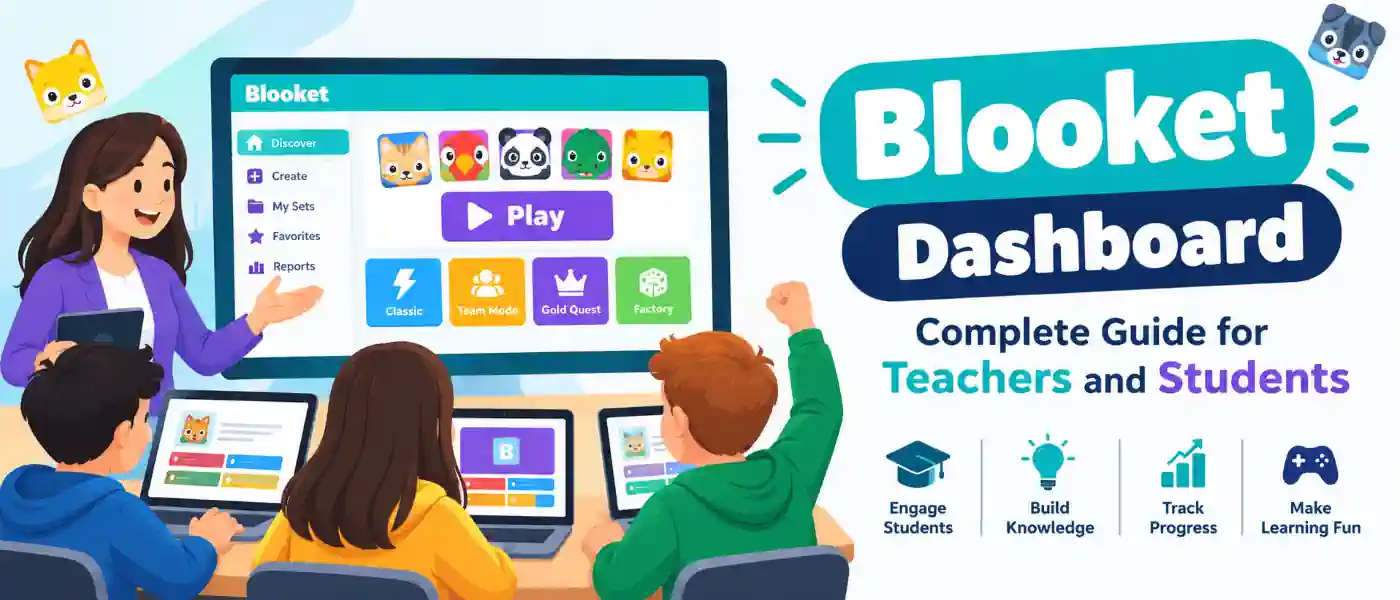
For anyone who has ever endured a review session that felt more like a punishment than a lesson, Blooket likely put an end to that for your class. Everything you need lives in one spot once you’re logged in: the Blooket dashboard. This is the first screen you see when you sign in, and it looks a bit different if you’re running the class (the teacher) or playing along (the student).
This guide details what you’ll find there, the differences between the teacher and student views, and some things that aren’t always immediately apparent when you first start using it.
What the Blooket Dashboard Actually Does
The dashboard is mission control for your Blooket account. It’s at dashboard.blooket.com once you’ve logged in, and everything stems from there: creating question sets, starting a live game, seeing how your students performed last week, or (if you’re a student) using your hard earned tokens to buy a new Blook.
The interface is not one-size-fits-all. Teachers have tools to help them make content and interpret results. Students have a simpler interface, geared towards playing the game, monitoring their scores, and collecting characters. The experience on the platform is the same but utterly different identity-wise (if you’re teacher or student).
Signing In for the First Time
You can log in in three different ways: with a Google account, with a normal email and password, or through Clever, the single sign-on used by many schools. The dashboard is organized into named modules when you’re done, so you’re not digging around for buttons.
It is worth remembering that students do not need to have full accounts to play live games. A teacher can share a game code with students, who can then enter the code and start playing instantly. While this is fine for a one-off activity, the real benefit is encouraging students to create a proper account so they can start collecting tokens, unlocking Blooks, and seeing their stats build up over time.
Inside the Teacher Dashboard
This is the main portion of the planning, and it breaks down into a few neat categories.
Create
This is the question-building space. You can do multiple choice, true or false, images with questions, explanations for answers, it’s all here. You can also import a spreadsheet of questions you may already have from a previous unit, instead of having to type everything in by hand.
Discover
Not all teachers want to start from nothing, and that’s what Discover is for. It’s a collection of sets shared by other teachers, on just about every subject you can imagine. Getting around here before your first live game is usually the quickest way to get comfortable with the platform.
Host
When a set is ready, Host is where you host it on the Internet. There are a variety of game modes you’ll choose from, including Tower Defense, Battle Royale, Gold Quest, and Café, each of them offering a unique competitive twist centered around the same set of questions. The variety is part of the reason students don’t get sick of review sessions the way they might with a standard quiz.
Assign
It doesn’t all have to happen in real time. With Assign you can send a question set home as homework, and students can complete it in their own time.
Reports and Stats
Once a round ends, this section reveals the precise areas where students have difficulty in the game. If half your class misses the same question, that’s your sign to go back over the topic before moving on. The majority of this information can be exported as well, if you track grades or progress notes outside the platform.
Classes
For teachers handling multiple classes or subjects, Classes keeps everything neatly separated so that classes don’t get mixed up with each other.
Inside the Student Dashboard
Now students get a more nimble, game-centric design that revolves around four pillars.
Play
To join a live game, students just need a code from their teacher. There are also solo modes that students can use to practice on their own, not necessarily during a scheduled class session.
Homework
Here you can see all the assignments that your teacher has sent out, with a clear indication of what has been completed and what is still waiting to be done.
Stats
This is a student’s personal scoreboard, which tracks their record and progress over past games.
Market and Blooks
Here’s the part that keeps students coming back: in-game tokens are spent in the Market to unlock Blooks, characters you can collect, with a quite sizable roster. It’s a tiny reward loop, but it does a lot of work holding kids’ motivation to actually finish their sets of homework.
Free Plan vs. Blooket Plus
The good news is that none of that is ever very costly. The free tier also provides the majority of game types and dashboard functionality for teachers and students. Blooket Plus is a paid enhancement for teacher accounts, and it mainly offers more detailed reports, a few extra game modes, and more sophisticated class management tools.Unless you need those extras, the free version is good enough to both teach a class and run one. .
A Note on Younger Students
Blooket is designed for students under the age of 13 to play with the supervision of an adult, whether that be a teacher or a parent who is watching the account. This is pretty normal for kid-oriented ed tech, so just keep that in mind when creating accounts for your younger students.
Getting More Out of the Dashboard
A few habits that actually matter. New teachers on the platform will often find that their time is best spent first on Discover rather than immediately creating their own content; it makes for a much quicker learning curve. When you look at Reports right after a game — not days later — it is so much simpler to spot and fix weaknesses when the memories of the materials are still fresh.
For students, regular glances at Stats are a way of self-monitoring, and Market is a real (albeit small) incentive to do homework.
Regarding mobile usage: the dashboard is suitable on a phone for fast tasks such as checking homework or playing a quick game, but it is always more enjoyable to do the more complex things like building question sets or digging into detailed reports on a larger screen.
Wrapping Up
Blooket’s dashboard is what holds the whole platform together: question creation, live hosting, homework, and teacher tracking, and then providing a fun, reward-driven experience for students. Once you become accustomed to both aspects, you will find that review sessions are no longer a “busy work” but a true reflection of what students understand and what they do not.